











Your ForteBet account is the gateway to placing bets, checking your history, reviewing account activity, and managing available settings. Registration creates a new profile, while logging in gives access to an account that already exists. Keep your phone or email details available before you begin, and use only a private connection when entering sensitive information.

How to Log In to Your ForteBet Account
Open fortebets-congo.com in a trusted browser and locate the login form at the top of the homepage. Enter the phone number or email address linked to your profile, then type your password. Check for extra spaces, the correct keyboard language, and an active Caps Lock key before submitting the form.
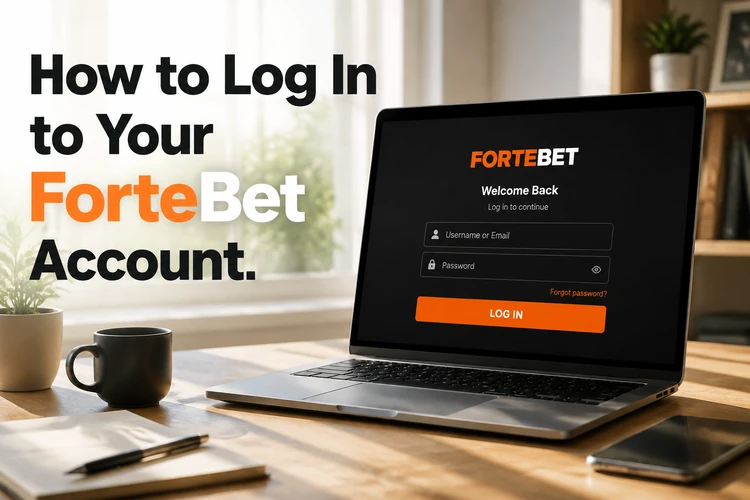
After selecting the sign-in button, the site checks the details and opens the personal dashboard if they match. A remember-me option may be available on the form. Use it only on a private device; on a shared computer, sign out when finished and avoid saving the password in the browser.
- Step 1: Open fortebets-congo.com in your browser.
- Step 2: Select the login button at the top of the page.
- Step 3: Enter the phone number or email address registered to your account.
- Step 4: Type the password exactly as created, including capital letters.
- Step 5: Select the sign-in button and wait for the dashboard to load.
If the form clears after submission, review every field rather than repeatedly pressing the button. Several failed attempts can trigger a temporary security block, so patience is safer than trying many password combinations.
Password Security and Account Recovery
A reliable password should be difficult to guess and different from the passwords used for email or social media. A combination of words, numbers, and symbols is easier to manage when stored in a reputable password manager. Do not share credentials through messages, and do not save them on a public computer.
When the password is forgotten, use the password recovery link shown on the login form. The service may ask for the phone number or email address connected to the profile before sending a reset code or link. Follow the instructions promptly, check the spam folder if an email does not appear, and never forward a recovery code to another person.
After access is restored, create a new password that has not been used elsewhere. If the account settings include a security area, review the contact details and active sessions there. A password change is also sensible if the device was lost or unfamiliar activity appears in the account history.
Logging In from a Mobile Device
The mobile version of ForteBet can be opened through a current browser on Android or iOS. Chrome, Firefox, and Safari generally provide the controls needed for account access. The page adapts to a smaller screen, but a stable data connection is still necessary for the form and verification messages to work correctly.

Mobile access is useful when you need to check a bet slip, review account information, or respond to a verification request away from a computer. Rotate the phone if a field is difficult to see, keep the browser updated, and avoid logging in over an unsecured public network. The same account credentials can be used on mobile and desktop.
Android users who prefer an app-style experience can review the ForteBet APK information before installing anything. Check the device requirements and download instructions carefully. Never enter account details into an unofficial application or a page reached through an unexpected message.
Registering a New ForteBet Account
People without an existing profile can begin registration from the homepage. Select the registration control and complete the requested personal details, contact information, country of residence, and password. Use information that matches your identification documents, because inconsistent details may delay later verification.
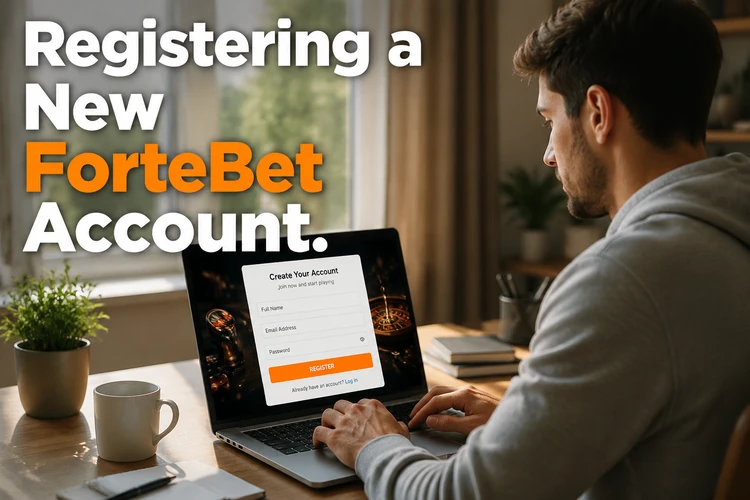
Before submitting, read each field and confirm that the phone number and email address are accessible. A verification message may be sent by SMS or email. Complete that confirmation step using the instructions displayed on screen. Registration itself does not mean every account function is immediately available; additional checks may be requested before certain transactions.
What the Registration Form Asks For
Fields commonly include a full name, date of birth, phone number, email address, country, currency, and a chosen password. The exact form can change, so follow the current labels rather than guessing what a field means. Enter one set of personal details only and avoid creating duplicate profiles.
A registration number may be assigned after sign-up and can help support identify the correct profile. Save it with your account records, but do not post it publicly. If a verification code fails, request a new code and check that the contact detail in the form is correct before trying again.
What You Can Do Once Your Account Is Active
Once the profile is active, the dashboard can provide access to available betting markets, live events, bet history, and account transactions. The user profile is also where you may review personal details, notification preferences, and other settings offered by the platform. Always read the conditions shown beside a deposit, withdrawal, or betting option before confirming it.
Protect the account after registration as carefully as during the first login. Keep contact details current, use a private device where possible, and review activity when something looks unfamiliar. The responsible gambling guidance explains practical ways to set limits and keep betting within an affordable budget.
Common Login Problems and How to Fix Them
The most frequent error is an incorrect password. Check capitalisation, spaces, and the phone number or email address used during registration. If the credentials are correct but access is still refused, stop repeated attempts and use the recovery option. This reduces the chance of extending a temporary security lock.
A slow or incomplete page can indicate an internet problem. Switch between Wi-Fi and mobile data, reload the page, or try an updated browser. Clearing cached data can help when old page elements interfere with the form, although you should make sure you know the password before clearing saved browser information.
On a phone, close unused tabs, check that the browser has permission to receive messages, and try a different current browser if the form does not respond. Do not use a link from an unsolicited message. If these steps fail, contact support through the contact page and describe the error without sending your password or verification code.
FAQ
Open fortebets-congo.com, select the login button, and enter the phone number or email address linked to your account. Type the password carefully and submit the form to open the dashboard.
Use the password recovery link on the login form. Confirm the registered phone number or email address, then follow the reset code or link instructions. Create a new password and keep it private.
Yes. Select the registration option on the homepage, enter the requested personal details, choose a password, and complete any phone or email confirmation shown during the process.
It is an account identifier that may be issued after registration. Keep it with your account records, as support may request it when helping identify your profile.
Yes. The same credentials can be used in a mobile browser and on a desktop. Use a secure connection and sign out on shared devices.
The draft information states that registration is free. Deposits and bets are separate actions, so review the relevant terms and transaction details before using the account.